

If you are new to live visuals or if you are getting ready for a show with lots of projectors at a festival Resolume Arena is the software that most professionals use. This guide will teach you about the basics of the interface and about advanced techniques like mapping projections making the most of the DXV codec and setting up external controls. You will learn everything you need to know to use Resolume Arena and make good choices when you are working with the software. Resolume Arena is what professional VJs and projection artists use so this guide is really helpful, for people who want to learn about Resolume Arena.
What is Resolume Arena?
Arena is a professional live video mixing and projection mapping application developed by Resolume, a Dutch software company. It is widely recognised as the industry-standard tool for VJ performance, covering everything from a single-projector club setup to a complex multi-output architectural mapping show.
The main thing that Resolume Software does is let you put videos loops and live camera feeds into a grid. Then you can play with them mix them together and change them in time. What makes Arena special is that it gives you a lot of control over what you’re doing. You can add effects to each video clip, layer things on top of each other. Even sync everything to the beat of the music. Arena also works with controllers and can even control lights and other things. One of the cool things about Resolume Software is that it has a special tool, for projecting videos onto weird shapes and it can even work with professional lighting systems.
The software runs on both macOS and Windows and is available as a fully functional demo before purchase.
Resolume Arena vs Avenue: Which Version do you need?
Resolume ships in two versions: Avenue and Arena. Understanding the difference before you buy saves both money and confusion.
Avenue is the VJ-focused package. It covers video and audio playback, live camera input, over a hundred built-in effects, and complete MIDI/OSC mapping. If your work involves a single projector, an LED wall, or straightforward audiovisual performance, Avenue does the job.
Arena is Avenue’s professional counterpart. It includes every feature in Avenue and adds a suite of tools designed for larger, more technically demanding productions. The features exclusive to Resolume Arena are:
| Feature | Avenue | Arena |
| Live video mixing | ✓ | ✓ |
| 100+ effects and sources | ✓ | ✓ |
| MIDI and OSC control | ✓ | ✓ |
| BPM sync and quantisation | ✓ | ✓ |
| Projection Mapping | — | ✓ |
| Edge Blending | — | ✓ |
| SMPTE Timecode Input | — | ✓ |
| DMX Control and Fixture Output | — | ✓ |
| Capture Card Output | — | ✓ |
| Groups | — | ✓ |
| Slice Transforms | — | ✓ |
| Pioneer Pro DJ Link | — | ✓ |
| Denon StageLinq | — | ✓ |
If you are unsure which version fits your needs, starting with Avenue is a safe choice. Upgrading to Arena later costs only the price difference — you will not pay more than if you had bought Arena from the start.
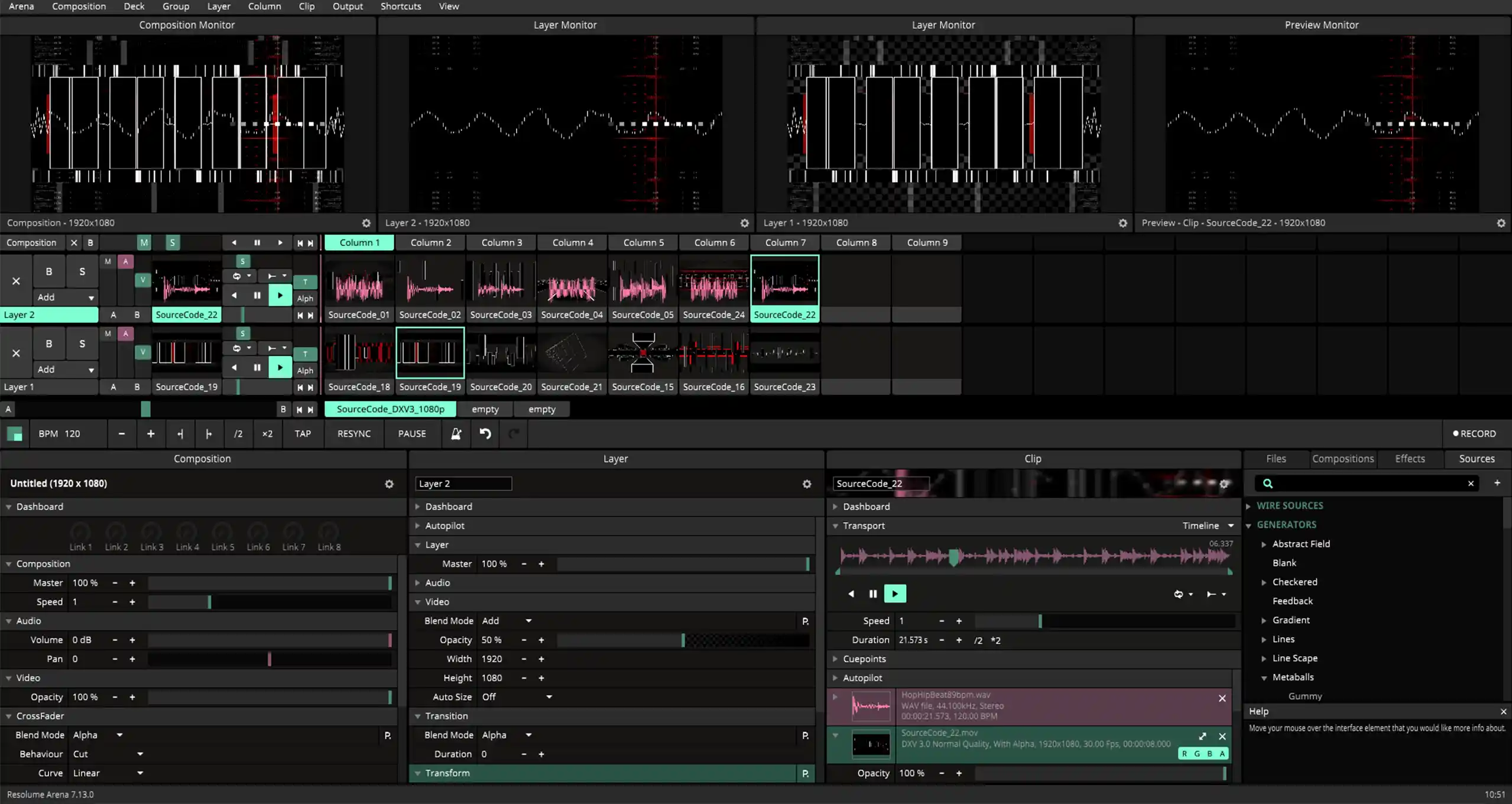
Interface Overview and Core Workflow
The Resolume arena interface is made for performances not for working on projects after they are finished. It does not have a timeline like you would normally see. Instead you can. Mix everything as you go along.
The Composition Grid
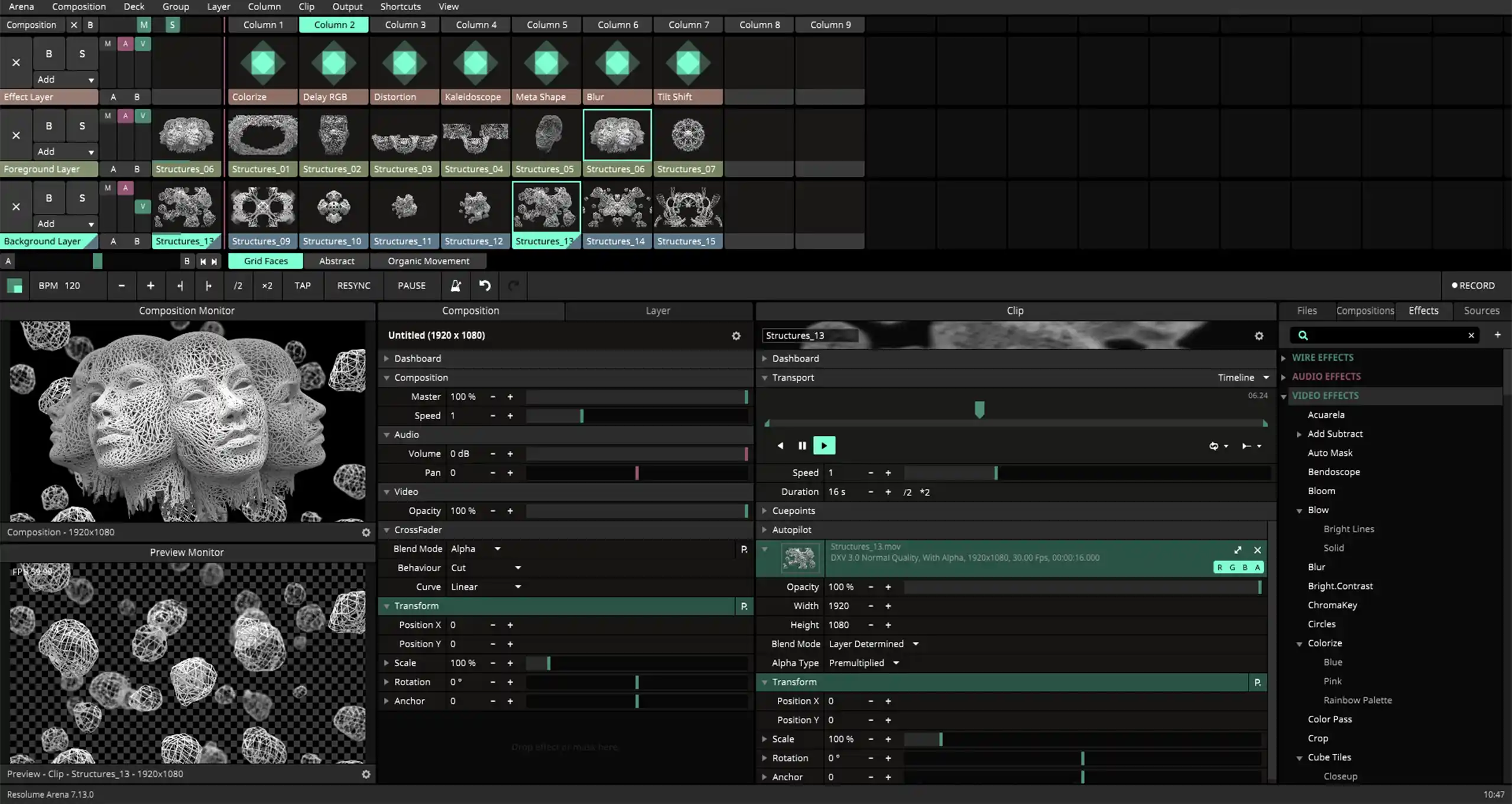
The main part of the interface is the Composition. It is like a grid where you have columns, called Decks that go across and layers that go up and down. Each little square in the grid can hold a clip. You can start a clip by clicking on its square. It will play on the layer that it is on. You can play clips on different layers at the same time and they will all come together in real time.
Layer Panel
Each layer has its controls. You can make it see through change how it blends with other layers move it around make it bigger or smaller turn it around and add effects to it. The layers are stacked on top of each other. You can turn any layer on or off by itself.
Dashboard
The Dashboard is where you can control the speed of your music make things move automatically and do things in time. You can take any part of the software. Like a knob that controls an effect or how see through a layer is or how fast a clip plays. And put it on the Dashboard so you can get to it quickly or make it happen on the beat.
Output Panel
The Output panel shows you what you are actually sending to your projector or LED processor. In Resolume Arena the Advanced Output module makes this into a system where you can send different things to many different outputs.
Clip Inspector
If you pick a clip you can open its Inspector, where you can change how fast it plays whether it loops or not where it starts and stops how it blends with clips and what effects are on it. These settings are saved with each clip, in your composition file so you do not have to worry about losing them.
Projection Mapping in Arena
Projection mapping is what makes Arena special. It is what makes Arena more than a VJ tool. It makes Resolume Arena a full production platform for projection mapping video shows on any surface.


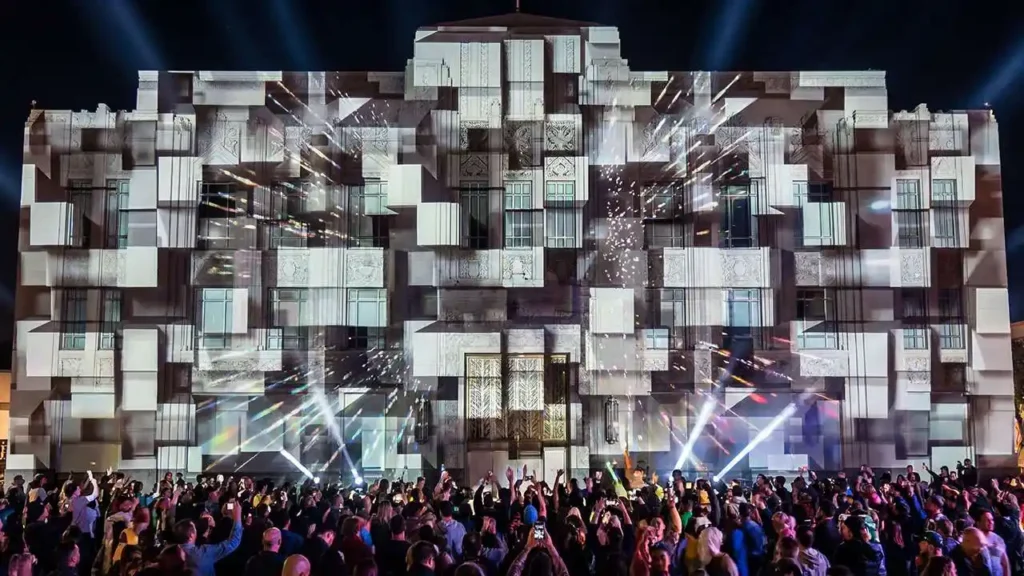


What Projection Mapping is?
Projection mapping called video mapping is when you project video onto things that are not flat. Like buildings, stages or sculptures. The video is made to fit on the thing you are projecting on. It looks like the video is part of the thing.
How Slices Work in Resolume Arena
In Resolume Arena we use something called Slices. A Slice is a part of the output that you can move make bigger or smaller turn and warp. You use control points to do this. Each Slice gets its content from a part of the composition canvas. You adjust the control points to make the projected image fit on the thing in front of the projector.
Input Mapping
Input Mapping is when you decide which part of the content goes to each Slice. This is important for installations. Like a building you can divide it into parts and each part gets a different part of the content.
Structure Mapping
Structure Mapping is a tool for matching a projection to an object. You define the surfaces of the object. Assign content to each surface. This makes it easier to work with things like cubes or stages.
LED Stage Mapping
LED Stage Mapping is for LED installations. The display is made of LED tiles. Resolume Arena maps the output across all the tiles. It handles the shape of the setup.
Edge Blending (Arena only)
When one projector is not enough you use many projectors. Their images overlap at the edges. Edge Blending in Resolume Arena makes the overlap look smooth. The seam between projectors is invisible, to the audience. It looks like one image from one source.
Loading and Triggering Content
The kinds of files that Resolume arena can work with are many. It can handle video files like MP4, MOV, AVI, HAP and its own special format called DXV. For sound it can use WAV, MP3 and AIFF files. You can also use pictures like PNG, JPG, GIF and even PDF files, as clips.
The File Browser is a help. You can drag files from it into the composition grid. This is the way to add content. The browser shows you pictures and previews of the files without having to open another program.
There are a ways to make your clips play. You can set each clip to Loop, which means it will keep playing over.. You can set it to One Shot, which means it will play once and then stop. You can also set it to Ping Pong, which means it will play forward and then backward and keep doing that.. You can set it to Random, which means it will play in a random way. You can use these modes with settings to control when and how your clips play.
Quantisation is a way to control when your clips start playing. It helps your clips start at the time so they do not look funny when they switch. For example you can set it so that your clip starts at the beginning of the bar. This means that no matter when you click the clip it will always start at the time. This helps make your video look smooth and nice.
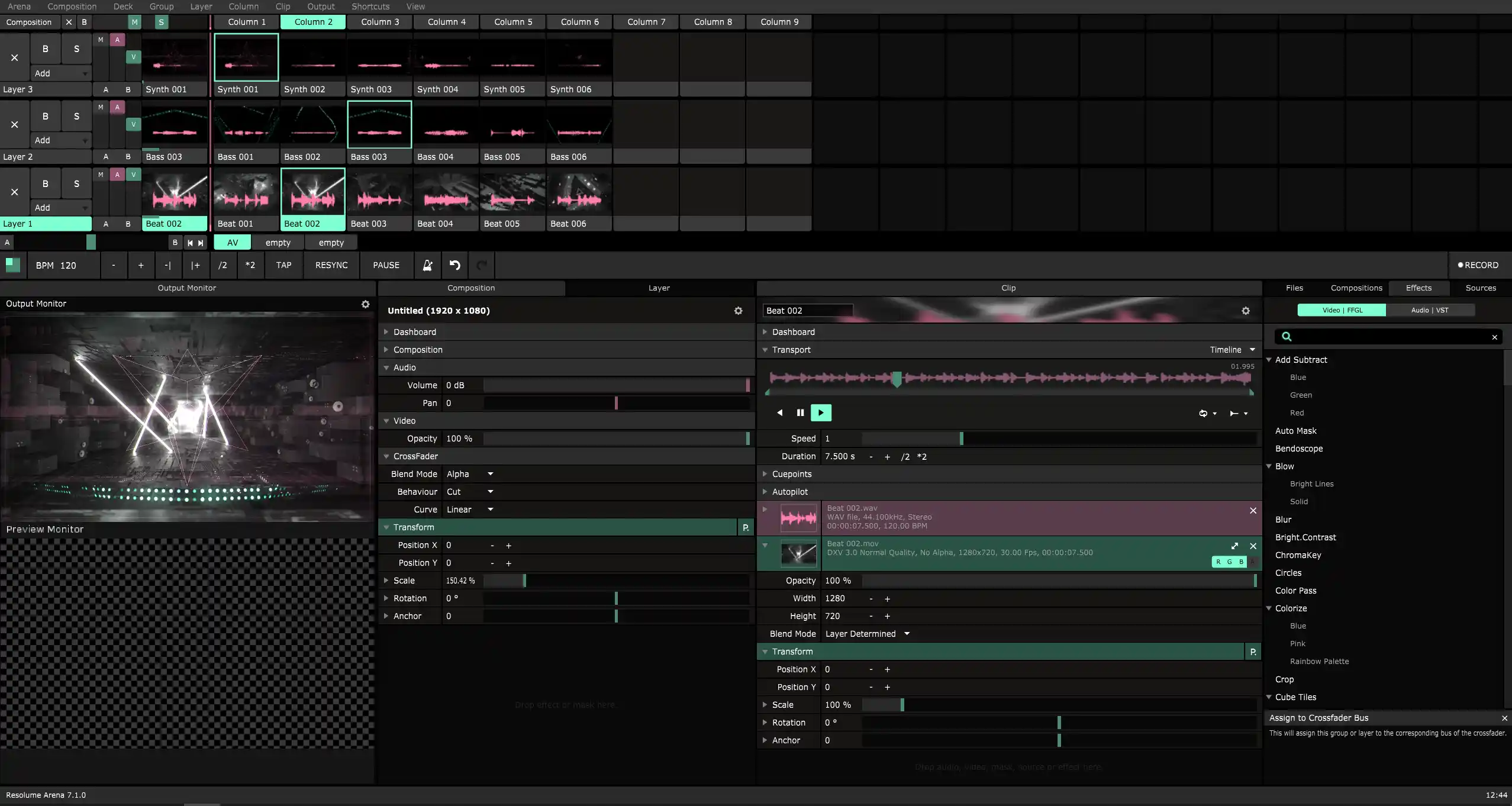
Layers, Blending Modes and Compositing
When you are doing a VJ performance in Resolume arena it is about layering. You are running video streams at the same time and controlling how they look together visually.
Blend Modes
Each layer can have its blend mode. This mode controls how it combines with the layers below it. There are a modes that people use a lot. These include Add, which makes the video brighter and Multiply, which makes it darker. Screen is similar to Add. It is softer. Difference creates a look by subtracting pixels. Then there is the Alpha mode, which’s good for videos with transparent parts.
Layer Transform
You can move each layer around make it bigger or smaller and rotate it. You can make these changes happen to the beat of the music or you can control them with MIDI. Or you can just set them and leave them alone so your video looks how you want it to.
Groups (Arena only)
In Resolume Arena you can put layers into Groups. A Group is like a composition inside the big one. All the layers in the Group combine together first. Then that combination acts like one layer in the main composition. This is really useful when you want to make videos with a lot of parts.
Positive and Negative Space
Resolume teaches you about negative space. When you use Add or Screen blend modes the dark parts of a video are basically invisible. This means you can stack videos on top of each other without needing an alpha channel. That is why a lot of VJ videos like the ones you can find at videomapping.store have black backgrounds and bright moving parts. Layers like these work well together when you are doing a VJ performance, in Resolume arena and using different blend modes and layer transforms can make them look even better.
Effects: Audio, Video, and FFT Reactivity
The Effects Library
Resolume comes with a lot of built-in effects. These effects are grouped into categories. We have effects that change the hue, saturation, brightness, contrast and colour correction of a video. Then there are Distort effects like wave, ripple and displacement that change the shape of a video. We also have Blur effects such as gaussian, motion and directional that make a video blurry. The Transform effects can flip, mirror, tile or create a kaleidoscope effect. Lastly we have Generate effects that create sources like Perlin noise, gradients and geometric patterns.
Effect Routing Levels
You can apply effects at three levels. These levels work independently of each other.
- Clip level: The effect only works on a video file. It does not matter what else is on the layer.
- Layer level: The effect works on the layer. This includes any video that is playing on it.
- Composition level: The effect works on the video before it is sent to the output. This is like a master bus insert in production.
This three-level system lets you create effects. For example you can have a colour-shift effect on a video, a blur effect on the whole layer and a global colour-grade on the final output. All these effects can work at the time without interfering with each other.
VST Plugin Support
Resolume also works with third-party VST audio plugins. This means you can use a lot of audio processors that are available. You can apply these plugins to any audio that is playing in the composition.
FFT Audio Reactivity
Resolume uses FFT analysis to make visuals react to audio. The audio signal is broken down into frequency bands. These bands are bass, low-mids, high-mids and treble. Any setting in the software can be connected to a frequency band. This means that the setting will change in time with the music. The result is visuals that really respond to the energy of the sound. They do not just move at a fixed tempo. Resolumes FFT Audio Reactivity makes the visuals look like they are dancing to the music. This is because the FFT Audio Reactivity in Resolume is so good, at responding to the audio.
BPM Sync and Rhythm-Based Performance
One of Resolumes points is how well it syncs with music beats. It is built to match visuals with music from the start.
Internal Tempo and Tap Sync
Resolume has its BPM clock. You can set it yourself. Tap it in real time. Once you set the tempo any effect that is set to the clock will stay in sync with the music even if you change the content.
Parameter Animation
Parameters can be animated in shapes like sine, square or triangle waves. These are all locked to the BPM clock. Can be set to a certain number of bars. This way you can make things move automatically to the rhythm like a layer that changes opacity with every beat.
Pioneer Pro DJ. Denon StageLinq (Arena Only)
If a DJ is performing with Pioneer or Denon equipment Resolume Arena can get the BPM and track info from the decks. This means the visuals will always be in sync even if the DJ switches tracks at speeds. The VJ does not need to adjust anything.
SMPTE Timecode (Arena only)
For shows that’re pre-planned, like theater productions or laser shows Resolume Arena can use SMPTE Timecode. This is a way to sync many systems to one timeline. When the timecode is running you can automatically trigger clips, change parameters and switch decks at moments.
MIDI, OSC and External Controllers
MIDI Mapping
Every button, fader, knob and clip cell in Resolume arena can be controlled with a MIDI device. To map a MIDI control you use a mode called MIDI Learn. You activate it click on what you want to control in Resolume and then move or press the button on your MIDI device. This mapping is saved with your composition. You can set buttons to do things when you press or release them or to stay on until you press them again. This allows for effects like making something happen only while you hold a button down.
OSC Control
OSC (Open Sound Control) is a way to send control messages over a network. You can make a custom control panel on a tablet or phone with an OSC app. This lets you control your Resolume arena show wirelessly. It is really useful for performers who want to move on stage while controlling the visuals.
Resolume REST API
If you need to integrate Resolume with systems, like custom software or building control systems Resolume has a special API. This API lets other applications read and write any parameter in Resolume over a network connection. It is the advanced way to control Resolume from outside.
DMX Input (Arena only)
Resolume Arena can also receive DMX commands. This means a lighting operator can use a lighting console to send commands to Resolume Arena. These commands can trigger clips or change settings, in Resolume Arena. It helps to combine lighting and video control into one system.
DMX and Lighting Integration
DMX Output
Resolume Arena sends DMX signals to lighting fixtures like moving lights, LED bars and strobes. You match video colours to DMX channels. This way lighting fixtures show the colours as the video. The lighting colour changes in time to match the video. This creates a visual effect. The stage lighting looks cohesive with the video.
Integration with Lighting Consoles
Resolume Arena works with professional lighting consoles through DMX. It acts like a media server in a lighting setup. Lighting designers use GrandMA, Avolites or similar consoles to control Resolume Arena. They do not need help from the VJ to operate it.
The DXV Codec: Why It Matters for Performance
The problem with codecs is that they use the CPU to decode video frames. This can be an issue when you are doing live performances and you need to decode multiple video layers at the same time. The processor gets overloaded. This can cause problems like dropped frames, higher latency and the computer getting too hot.
As you add layers and increase the resolution standard codecs can become a big bottleneck.
DXV is different. It is a codec that Resolume made just for live playback. Of using the processor to decode video DXV uses the graphics card. The graphics card is much better at handling this kind of work so it can decode video frames more efficiently. This means that with DXV you can play video layers at the same time and you can use higher resolutions all without overloading the processor.
DXV 3 has some features:
- It uses the graphics card to decode video, which means it can handle a lot of video frames without slowing down the processor.
- It supports alpha channels, which means you can store transparency data in the video file. This makes it easy to do compositing without needing separate mask files.
- It has settings so you do not have to worry about messing up the encoding parameters.
If you want to convert your files to DXV you can use Resolume Alley. It is a tool that can convert any media file to DXV in just a few clicks. For people who work with video a lot there are also plugins for Adobe After Effects, Premiere Pro and Media Encoder. These plugins let you render your videos to DXV so you do not have to convert them separately.
The DXV files at Video Mapping Store.
Our team makes video mapping visuals also in DXV format. We also include a ProRes version so you can use them in After Effects if you need to. If you are using Resolume Arena you can just load the DXV files right in. No conversion needed. Its a benefit for our customers.
-
Sale!
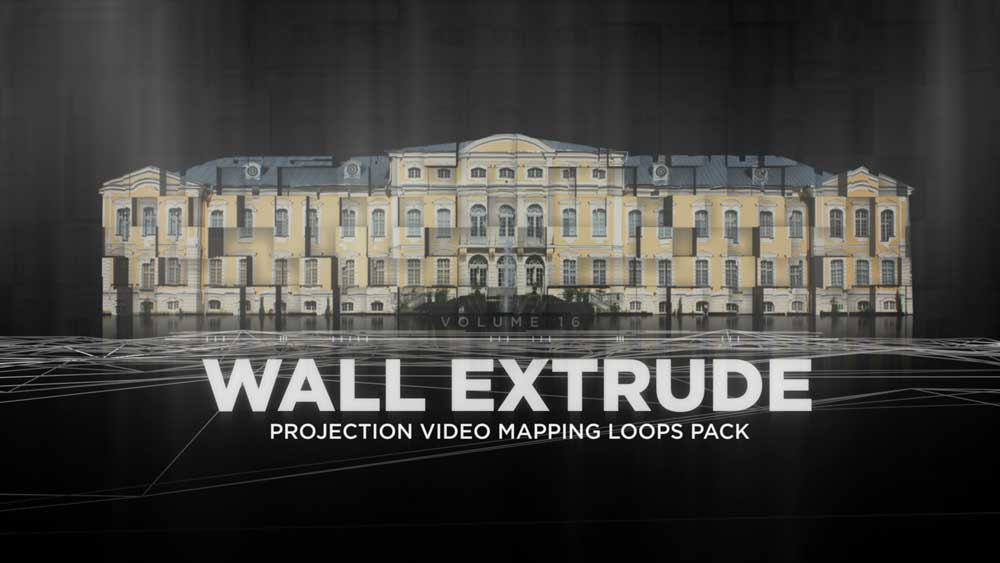
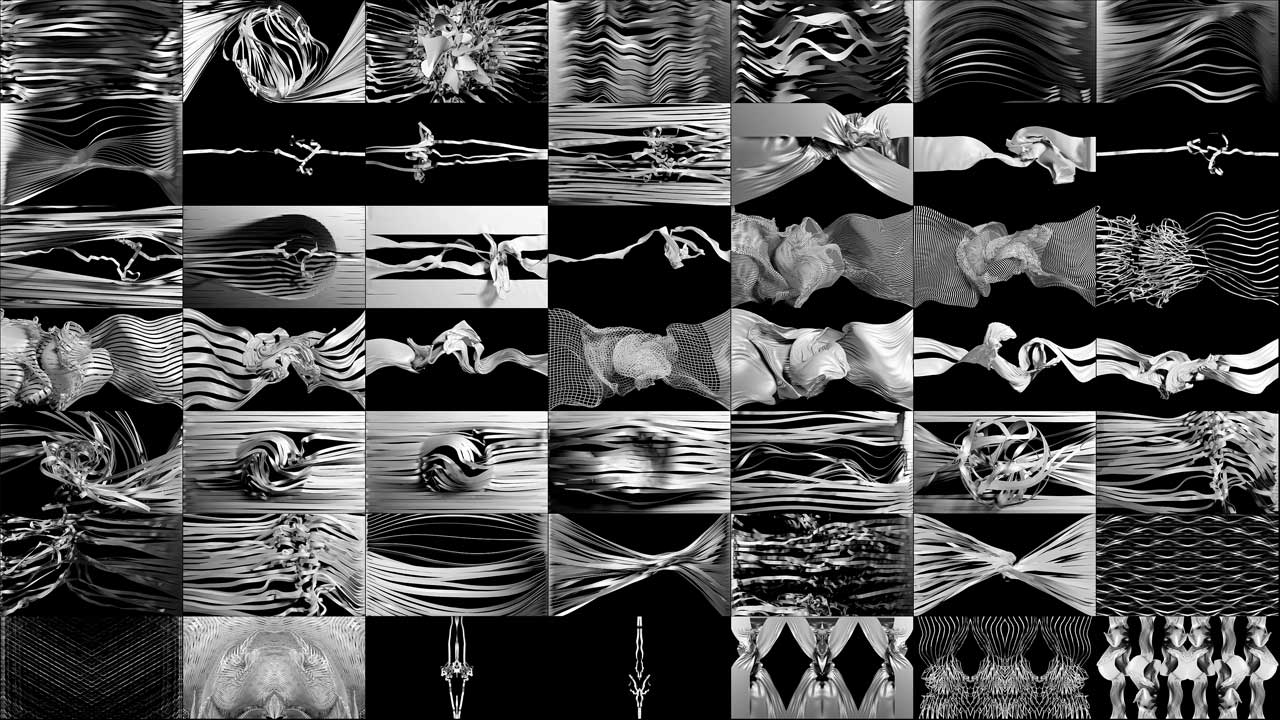
Wall Extrude – Projection Mapping Loops Pack Vol.16
Original price was: €129.€89Current price is: €89. -
Cloth Facade – Video Mapping Loops Pack Vol.21
€99 -
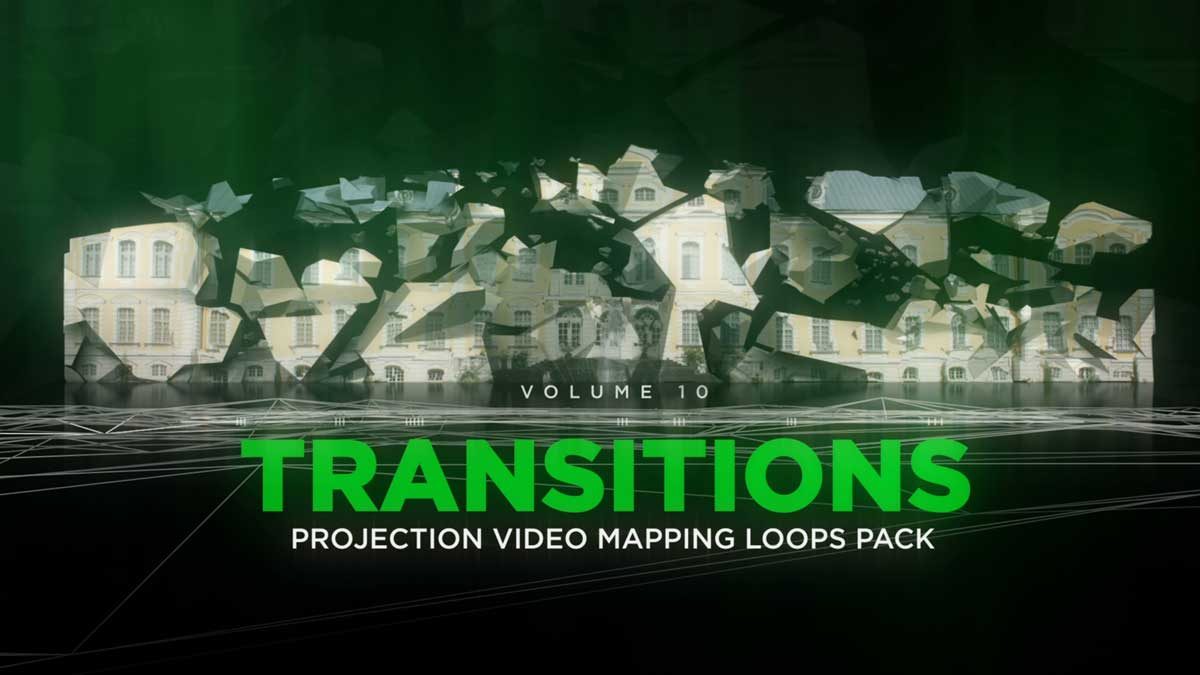
Transitions – Projection Video Mapping Loops Pack Vol.10
€99 -
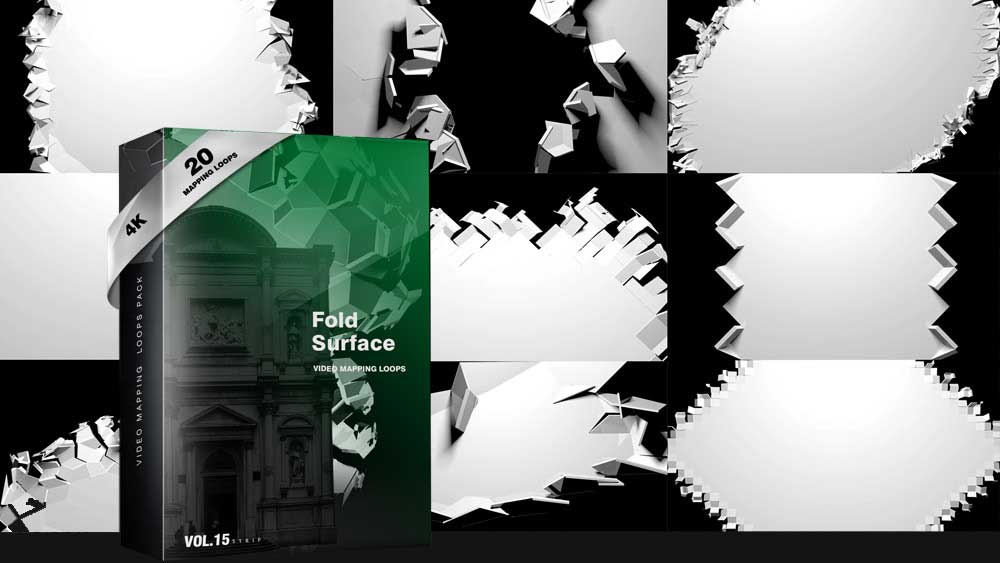
Folding Backgrounds 4K – Projection Mapping Loops Pack Vol.15
€99 -
Wall Displace – Projection Mapping Loops Pack Vol.11
€99 -
Sale!
Smart Reflection – Projection Mapping Loops Pack Vol.2
Original price was: €129.€99Current price is: €99. -
Sale!
Wedding Cake – Video Mapping Wedding Visuals Vol.1
Original price was: €249.€149Current price is: €149. -
Sale!
Ultrawide Walls – Projection Mapping Footage Pack Vol.18
Original price was: €149.€129Current price is: €129. -
Gold Edition – Projection Mapping Loops Pack Vol.8
€99 -
Falling Walls – Projection Mapping Loops Pack Vol.3
€99 -
Massive Turn – Projection Mapping Loops Pack Vol.14
€99 -
Panorama – Projection Mapping Loops Pack Vol.5
€99












Resolume Wire: Building custom effects
Wire is a node-based visual tool that comes with Resolume. It is used to make custom effects. It works alongside Arena and Avenue. With Wire you can make your effects, sources, transitions and blend modes that work just like the ones that come with Resolume.
Who Wire Is For
Wire is for people who make videos and visuals like VJs and artists. They can use Wire to make custom effects without having to write code. Wire uses a system of blocks that connect to each other so you do not have to write code to make things work.
Core Concepts
These blocks are called nodes. Each node does something like a math problem or making a shape. The nodes connect to each other using ports. The ports are like doors that let information go in and out. The information goes from one node to another. The final result is a picture that Resolume Arena shows.
Wire has a feature called instancing.
This means you can make rules that apply to objects at the same time. If you change one thing it changes everything. This makes it easy to make effects, like particles or patterns that would be hard to make by hand.
Integration with Arena
The effects you make with Wire show up in the Resolume effects panel like the effects that come with the program. You use them the way you use the other effects. This means you can make custom tools for a show and use them again in shows.
Juice Bar
There is a place called Juice Bar where you can get plugins made by other people. These plugins are like tools that you can use with Wire. They can do things like make colors look better or make particles move around. You can get these plugins from people who’re good, at making them and they can help you make your videos and visuals look really cool.
Input Sources: Video Cameras, NDI and Capture Graphic Cards
Resolume arena works with more than pre-recorded video files. You can bring in footage and external signals in several ways.
Live Cameras
You can use webcams and USB cameras. They work out of the box with your computers video driver. You can find them in the file browser. Use them in your composition.
Blackmagic Design, AJA and Datapath Capture Cards
For quality live input Resolume Arena supports capture cards from Blackmagic Design, AJA and Datapath. These cards can handle SDI, HDMI and component inputs at resolutions up to 4K. They process the signal right on the card, which reduces delay.
NewTek NDI
NDI (Network Device Interface) helps video move between computers on an Ethernet network. It keeps the video quality high. Delay low. You can even send output from another computer running NDI – software straight into a Resolume arena composition. No capture card is needed.
Syphon and Spout
On Mac Syphon lets you share graphics between applications in time. On Windows Spout does the thing. These protocols make it easy to send output from another application, like a game engine or 3D renderer, into Resolume.
System Requirements and Hardware
Operating Systems
Resolume arena works on macOS and Windows. If you are a macOS user with Apple Silicon (M1 and later) check Resolumes release notes to see if native ARM support is available. This has changed with recent versions.
Recommended Hardware for Live Performance:
To perform with multiple Full HD layers and effects without any issues:
- CPU: You need a modern multi-core processor. Examples are Intel Core i7 or i9 or AMD Ryzen 7 or 9.
- RAM: 16 GB is the minimum; 32 GB is recommended if you have compositions.
- GPU: A graphics card with at least 4 GB VRAM and OpenGL 4.5 or Metal support is required. Both NVIDIA and AMD graphics cards work well. Integrated graphics are not good enough for use.
- Storage: A fast NVMe SSD is highly recommended. Video playback depends on disk speed and fast sequential read speeds are crucial for multi-layer operation.
If you work with 4K multi-layer or installations with streams these requirements increase significantly. You need a GPU with 8-12 GB VRAM and a fast NVMe drive.
Monitors and Outputs
For live performance two monitors are standard: one for the Resolume interface and another for the projector or LED processor, as clean full-screen output. Resolumes output engine handles routing between them.

Pricing and Licensing of Resolume Software
Here are the prices for Resolume:
Resolume Arena costs €799 for one computer.
The licenses are tied to a computer. You can buy a hardware dongle separately. This dongle helps to move the license between computers without needing to activate it with software. There are licenses available. These licenses are cheaper. Are for students and institutions that qualify. You can also upgrade from Avenue to Arena anytime. To do this you just pay the price difference. There is no charge, for starting with Avenue.
Frequently Asked Questions about Resolume Arena
What is the difference between Resolume Arena and Avenue?
Avenue is the tool for mixing videos. It does the job. Arena has all the features of Avenue. Also does other things like projection mapping, edge blending, DMX control, SMPTE timecode input, and professional DJ sync. If you are working with one screen or a big LED wall Avenue is enough. But if you need to video mapping, blend images on many projectors or control lights then Arena is the better choice.
What video format is best for Resolume Arena?
DXV 3 is encoded using Resolume Alley or Adobe DXV plugins. GPU-decoded DXV gives layers at lower CPU cost, than other codecs. For pre-production and compositing ProRes works as an intermediate format. You should convert to DXV before performance.
Can I use Resolume Arena without a MIDI controller?
The answer is yes. You can use Resolume Arena without a MIDI controller. All the controls in Resolume Arena are accessible with a mouse. However when you are doing a performance having a physical controller is really helpful. It gives you a lot control over Resolume Arena in real time. So once you get familiar, with Resolume Arena it is an idea to get a MIDI controller.
Is an internet connection required to run Resolume Arena?
The internet is needed for license activation and for software updates. You can use Resolume Arena fully offline for day-, to-day operation. Resolume Arena does not need the internet to function normally once it is set up.
How many output channels does Resolume Arena support?
Resolume Arena can support a lot of outputs with its Advanced Output module. The thing is it really depends on what your computers GPU can do and how output ports you have. People often use Resolume Arena with four to eight projectors all running at the time, in big professional setups.
Can Resolume Arena receive live video from another computer?
The answer is yes Resolume Arena can do that. You can send video to Resolume Arena from another computer using NDI over a local network. You can use Syphon or Spout to share video between applications, on the same computer.